Concepts
How Merlin predicts
Merlin builds a ‘persona’ for every respondent in seed data — a model of that individual based on their answers. When you ask a new question or test a message with an audience, Merlin predicts what the response would be given what it knows about the members of that audience. Merlin does this by combining statistical and machine learning techniques with a large language model.
This gives you answers in seconds without recruiting or waiting for real respondents.
Audiences
An audience is a group of synthetic personas, defined by seed data, you can query on demand.
You can create groups within an overall audience based on specific criteria. For example, if you want to understand Young Londoners, you could create a new audience of people who answered that they are younger than 25 and live in London. You can then ask questions or test ideas with only those respondents and compare their answers to other audiences.
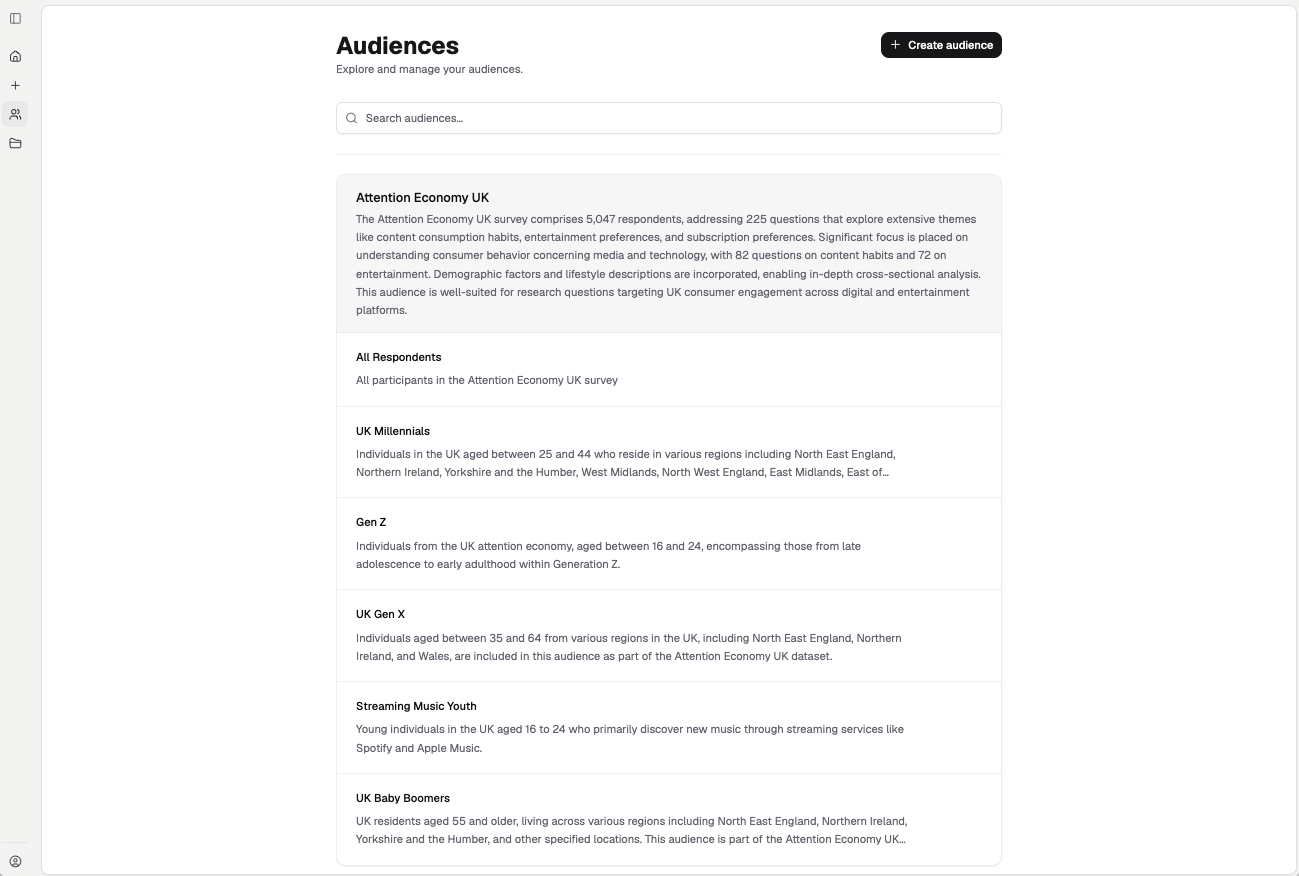
Audiences are grouped under the dataset they were built from, each with a description of who's in it.
Audiences can be created:
- From responses in the seed data
- Based on answers to synthetic questions you’ve asked
- Using natural language descriptions
- By our team based on other statistical techniques, such as your in-house segmentation
Defining the right audience is the single biggest lever on the quality of your results. See Audiences.
Studies
Studies are where you do your research. Each one collects its results — plots, surveys and focus groups — into a feed under the Results tab, and you add to it using the toolbar at the bottom of the page: Plot, Survey and Focus Group. A plot charts a question already in the seed data; a survey asks a new one. See Plots and Surveys.
Two things sit alongside the feed. The Insights tab (currently in beta) writes up what the study has turned up — an executive summary over the top, then the headline numbers pulled out and compared across your audiences, refreshed with Update summary. Export in the top right takes the whole study out. On the left, the agent panel is where you steer the study in your own words.
Start one with New study from the sidebar, or describe what you're after in the "What are you trying to discover?" field on Home and let the agent set it up. You don't need to create a project first. The shortest first run is Your first study.
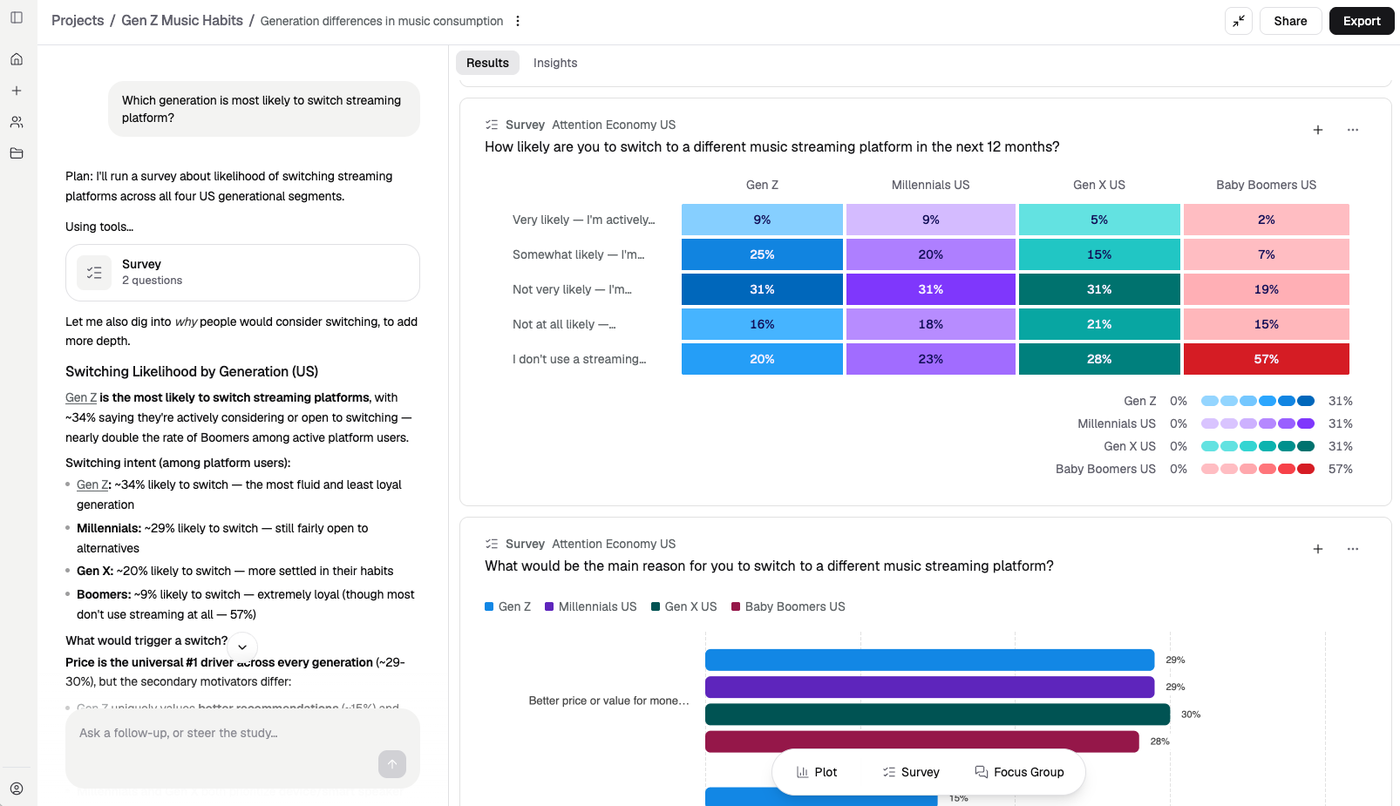
A study in progress. Results accumulate on the right; the agent's reasoning and written analysis run down the left.
The Insights tab turns that into a write-up:
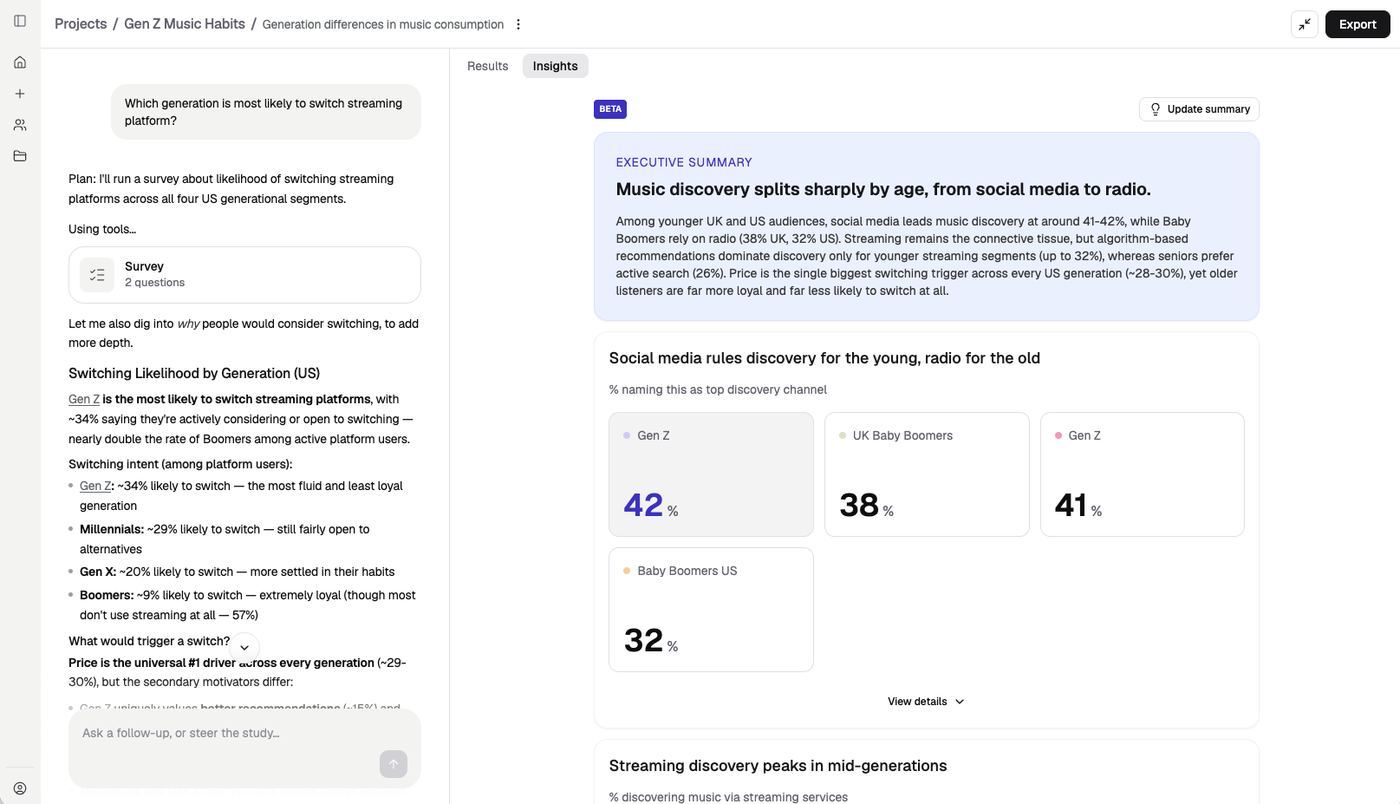
Insights is in beta. It writes an executive summary over the study, then pulls out the headline numbers and compares them across your audiences.
Projects
You don't need a project to start a study. Create one when you want a named place to group studies — a campaign, a client, a piece of work you will share as a set.
Open Projects in the sidebar and click New project. Studies you then start from inside that project land in it. Studies you start from Home sit on their own.
Sharing
You can send work to colleagues as an individual study, or as a whole project if you've grouped work that way. Once shared, your colleague will have their own version of the workspace, so they can carry on working independently without changing your work. They can then reshare that back to you later if needed.
You can choose to share either to specific colleagues via their email address, or to everyone in your organisation. Only people with Merlin accounts can access shared projects and studies.